How to Make Your Website Work With Computer Use
Stop optimizing only the screenshot. Give browser agents clear pixels, structure, names, state, and outcomes.
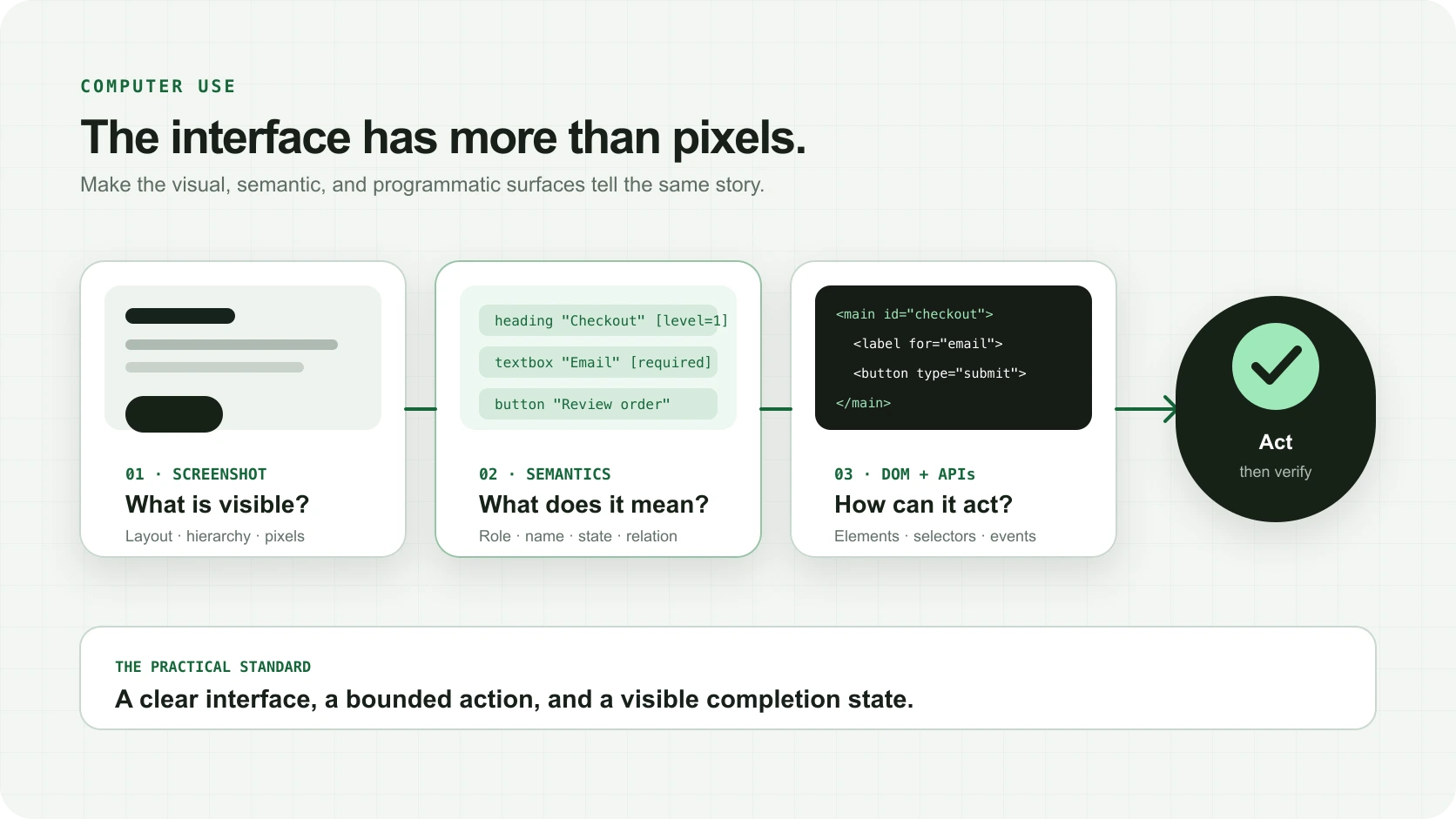
I thought computer-use agents looked at screenshots. That was true, but incomplete.
Some agents operate in a visual loop: take a screenshot, decide where to click, click, and look again. Others use browser APIs, the DOM, accessibility-derived snapshots, or some combination of all three. If you optimize only what the page looks like, you can miss the structure an agent uses to understand what the page means.
I missed this because I had never deliberately optimized one of our sites or applications for accessibility. I cared about the design, the words, the responsive layout, and whether a human could use it. I did not know how differently the interface could appear when the pixels were no longer the only source of truth.
That realization changed the work. The right question was no longer, “Can an AI see the button?” It became, “Can a person or agent identify the button, understand what it does, know whether it is available, predict the consequence, complete the task, and verify that it worked?”
Install the package
npm install @polyform-ai/a11y-guideA shorter prompt you can paste into Codex
Install @polyform-ai/a11y-guide in this application.

Audit representative, fully rendered page states and important workflows. Generate the standalone HTML readiness report, establish the baseline before editing, and fix the highest-value structure, accessible-name, state, feedback, keyboard, and consequential-action findings.

Prefer native HTML semantics. Do not add ARIA or tabindex everywhere, expose sensitive data in guidance attributes, change intentional behavior just to raise a score, or perform consequential production actions while testing.

After the fixes, rerun the report and verify important states with accessibility-tree or ARIA snapshots, keyboard-only use, responsive visual review, and at least one end-to-end browser-agent task. Treat the score as an automated prioritization signal—not WCAG certification or proof that every agent will succeed.
The repository contains the full product prompt, including the integration and validation path we use for Polyform. There is also a bounded, read-only public-site audit prompt for a site you do not own.
How agents receive the pageComputer use is not one interface
OpenAI's computer-use guide describes a visual loop in which the model receives screenshots and returns actions. The same guide also describes custom harnesses built with tools such as Playwright, Selenium, VNC, or MCP, and programmatic workflows that use DOM or browser APIs.
Those are not interchangeable views of the page. They overlap, but each carries different information.
Layout, visual hierarchy, color, geometry, icons, charts, canvas, and what is visibly on screen.
Roles, names, headings, landmarks, relationships, selected state, expanded state, and descriptions.
Elements, attributes, text, selectors, events, and programmatic ways to inspect or operate the page.
The strongest interface is not optimized for one channel. Its visual appearance, semantic meaning, and programmatic behavior agree.
Microsoft's Playwright MCP makes the difference unusually clear: its default approach uses structured accessibility snapshots rather than screenshots, which lets an agent operate on semantic page information without a vision model. Browser Use also combines browser automation with DOM and accessibility information, and its own browser-use guidance prefers accessibility-tree inspection before falling back to raw HTML or screenshots when layout and imagery matter.
The accessibility tree is not just “the DOM for AI.” Browsers derive it from native elements, attributes, CSS, rendered state, and ARIA. It is a semantic projection: this is a button, this is its name, this dialog is open, this tab is selected, this field is invalid.
That is why accessibility matters here. It gives people using assistive technology a usable interface. It can also give agents a cleaner, more stable representation than coordinate guessing alone.
What “accessible to an agent” actually looks like
A human may understand an unlabeled magnifying-glass icon because of its shape and position. A semantic agent may receive “button” with no name. A screenshot-driven agent may recognize the icon but click the wrong one when the layout changes. A DOM-driven system may find five matching buttons and have no reliable way to choose.
A good interface lets all three surfaces tell the same story:
- The page has one clear primary heading and meaningful section headings.
- Navigation and main content use real landmarks.
- Buttons are buttons, links are links, and form controls have persistent labels.
- Icon-only actions have names that distinguish them from nearby actions.
- Loading, selected, expanded, invalid, disabled, success, and error states are exposed—not only painted.
- Dialogs move focus in, restore it on close, and announce their purpose.
- A consequential action states what will happen, what is required, and what proves completion.
The W3C's accessibility guidance is still the right foundation. Its page-structure guidance explains how headings and regions improve navigation and processing. Its form guidance emphasizes explicit labels. The ARIA Authoring Practices Guide offers a particularly useful rule: a role is a promise. If you label something as a button, your code has to provide the keyboard behavior and state of a button.
This is also why “add ARIA everywhere” is usually a bad repair. Native HTML already carries behavior and meaning. Incorrect ARIA can make a clear interface less reliable for people and agents.
The open-source guideWhat the package actually does
We built @polyform-ai/a11y-guide because I wanted a repeatable way for developers and coding agents to see this surface, prioritize obvious problems, and explain what to change.
The package has four related jobs:
- Discover the rendered interface.
It identifies visible sections and actions, their accessible names, state, and stable selectors.
- Score readiness.
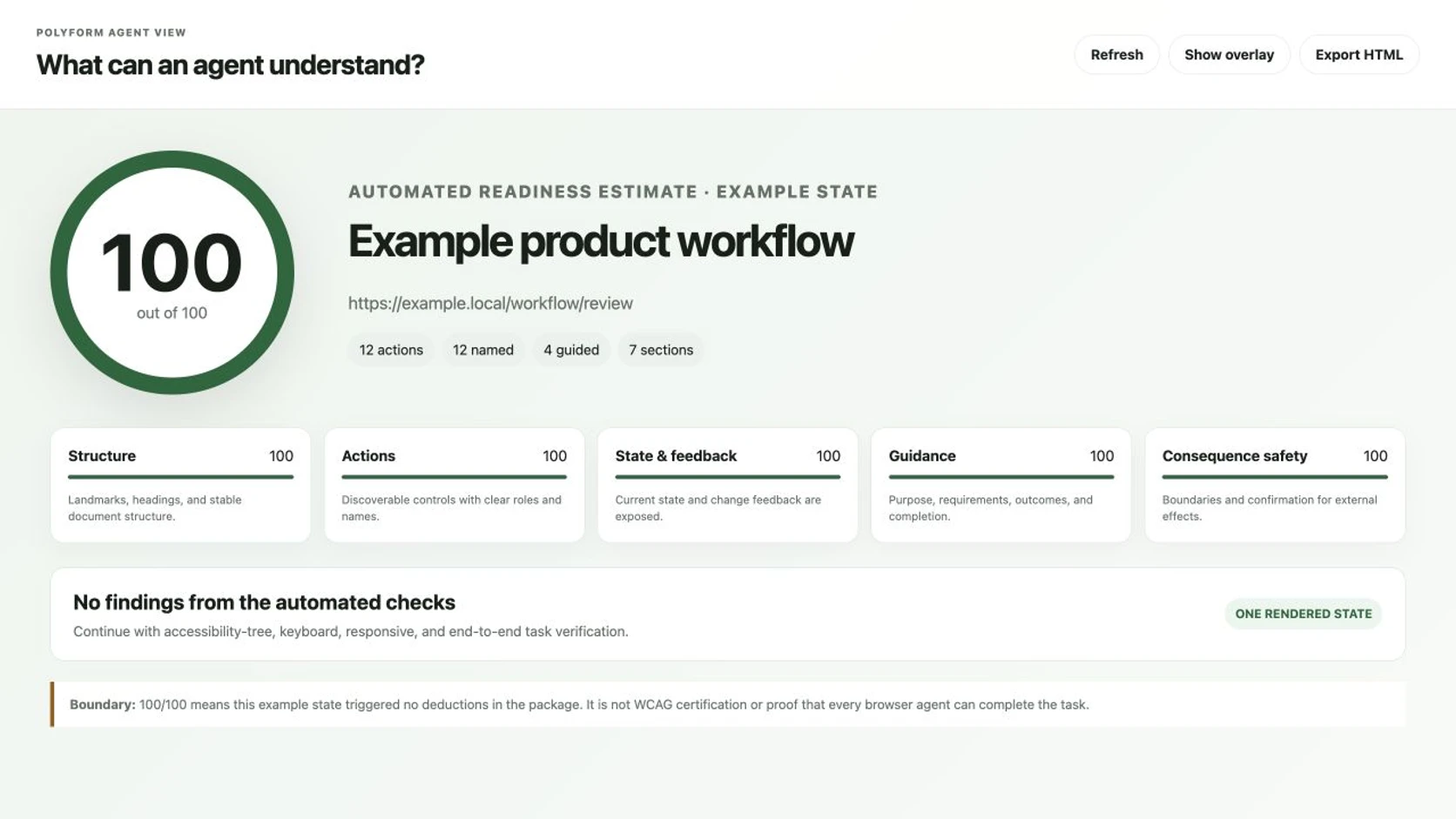
It produces explainable scores for structure, actions, state and feedback, guidance, and consequence safety.
- Guide the user.
It can add an optional page guide that helps someone jump to sections and available actions without changing the underlying workflow.
- Make findings inspectable.
It generates a standalone HTML report and powers an Agent View overlay and DevTools panel so each finding can be traced back to the rendered element.
The package can also attach extra guidance to an ambiguous or consequential action: prerequisites, expected outcome, what the action does not do, confirmation requirements, and the visible completion signal. Those fields should explain a real product contract, never expose customer data or compensate for a broken native control.
Do not optimize for the number
The score is there to make a large interface reviewable. It gives a coding agent a baseline, groups repeatable findings, and makes regression visible. It is not the final acceptance test.
A page can score 100 and still fail because an important control is visually ambiguous, a canvas contains the real work, a virtualized row never enters the rendered tree, focus disappears after navigation, or the agent cannot recognize the completion state. A page can also score below 100 because the automated heuristic lacks context while the actual workflow remains usable.
Use the number to decide where to look. Use human accessibility review and completed tasks to decide whether the product works.
Include loading, empty, error, permission, modal, success, and consequential states.
Save the score, findings, screenshots, and accessibility or ARIA snapshots before editing.
Repair native controls, names, headings, labels, state, feedback, and keyboard behavior.
Explain prerequisites, outcomes, confirmation, and completion only where the interface is ambiguous.
Verify the complete workflow with a person, keyboard, responsive browser, and at least one agent.
The finish line is a correctly completed task with visible evidence—not a prettier audit.
See what the agent sees in Chrome DevTools
A report is useful, but I wanted the problem to be visible while I was looking at the page. So we built the Polyform Agent View DevTools extension.
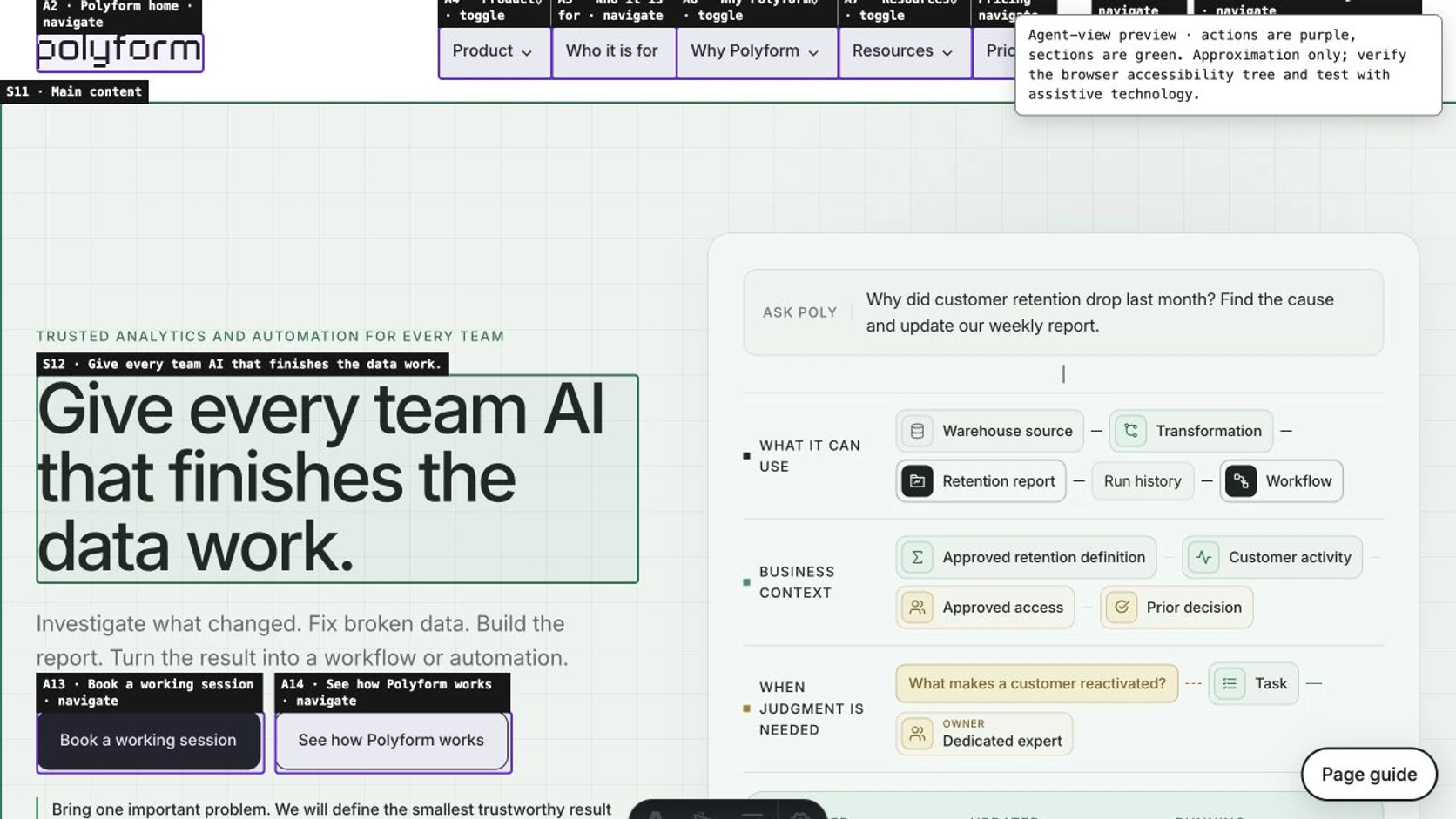
The panel scans the currently rendered page with the same scoring engine, shows the score and explainable findings, opens a problem element in Chrome's Elements panel, exports the report, and can draw an overlay around likely sections and actions.
Install Agent View locally
git clone https://github.com/polyform-ai/a11y-guide.git
cd a11y-guide
npm install
npm run build:extension

# Then in Chrome:
# 1. Open chrome://extensions
# 2. Enable Developer mode
# 3. Choose Load unpacked
# 4. Select extension/dist
# 5. Open DevTools on a page and select Agent View
The extension reads the rendered DOM through Chrome's inspected-window API. It does not collect or transmit the page content. Its overlay is intentionally honest about the limit: it approximates what an agent can find. Chrome's Accessibility pane, screenshot review, keyboard use, and a real task still matter.
Why we built this
This started with data, as many of our projects do.
We were analyzing conversion behavior on our own website and saw patterns that felt odd. Analytics alone could not prove which visits came from a person, ChatGPT, or another browser agent. But it was obvious that more people were beginning to ask AI tools to research products, compare options, and navigate websites on their behalf.
That exposed a blind spot. We were measuring what happened after a visitor arrived, but our development process did not show us how an agent understood the interface along the way.
We could have left that as an analytics finding. Instead, we built the missing tool.
That is the work I want Polyform to do with companies. Better analytics is not only a dashboard that points at a problem. It is finding the problem, understanding the operating context, helping the team decide what should change, and—when it is useful—helping fix it.
Sometimes the fix is an open-source project that we and everyone else can improve. Sometimes it is an intelligent application. Sometimes it is a maintained definition, a corrected data pipeline, or simply knowing the answer and working through it with the team.
The common thread is that the work does not stop at the observation.
Help us improve it
The project is MIT licensed. If the scanner misses an important pattern, the prompts need another framework, the extension could make a finding easier to understand, or you have a better agent-task test, open an issue or send a pull request.
Most importantly, use it on a real product and tell us where the report and the actual task disagree. That gap is where the project becomes useful.
References and further reading
- npm: @polyform-ai/a11y-guide
- GitHub: Polyform accessibility guide
- Copy-ready product integration and repair prompt
- Copy-ready bounded public-site audit prompt
- Polyform Agent View DevTools extension
- OpenAI: Computer use
- Microsoft: Playwright MCP
- Browser Use
- W3C WAI: Page structure
- W3C WAI: Labeling controls
- W3C ARIA Authoring Practices: Read me first
- How to measure whether an AI agent completed the business job
- How Polyform helps AI finish the data work